
KBL and Big Data
 | KBL Help Topic:Handling Large data volumes in KBL with the FILE command set |
A standard laptop PC with 4Gb+ of RAM is quite capable of handling >1 million rows of data and with KBL's data manipulation abilities and speed of development, KBL Studio (Express or Plus) makes an ideal development for projects that require handling large amounts of data - ETL, data visualisation, statistical analysis, etc. But, large datasets do have a few extra practical considerations.
The first thing to consider is the best way to read your large datasets into the KBL Studio environment. KBL's standard IMPORT and EXPORT commands are normal methods for handling files (e.g. .csv, txt or xlsx) typically of up to 0.5 million rows and processing even the top end of this volume of data is usually conducted in much the same as you would for just a few hundreds of rows. But once volumes start increasing into the millions of records, smarter methods of processing are available to cope physically with potentially long processing times and minimise machine memory requirements. For Very Large Datasets (VLDs) , different techniques and tactics are sometimes required. For example, for some types of data analysis, you may have many millions of source records in one or more files but perhaps only < 10% are really of interest to your investigation let's say one UK region out of the UK's census data. If you are able to confine your extract and analysis to the target region, you will significantly keep memory usage down and minimise processing time. But you need to pick out the useful data from the mass that we don't need.
Alternatively, supposing you had a database dump file of 10s of millions of records containing data from different tables. Could you distinguish between different tables and digest the data of interest in more manageable chunks?
The FILE Command Set
Firstly, we have the option of setting the scope of the data we want to read - all or part of a large dataset, then we import the data into File staging area
File.set /Import Start 1
File.set /Import End 10000
File.Import
Assuming we have a file of many 100s of thousands to millions of records, the File.set command lets us decided the first and last row (number) to read in. File.Set commands are optional and If not specified, by default, File.Import will import all records into the staging area. File.set /Import Start STARTfollowed by File.set /Import 20000would read in rows 1-20,000.
File.set /import Start 600001 followed by File.set /Import End ENDwould read the 600,001st record to the end of the file.
As usual, the start and end numbers can be parameterised so can be under script programme control e.g. File.set /import Start [NEXTSTART] followed by File.set /Import [NEXTEND]
Following the optional File.Set commands, File.Import will read the file as instructed or else default to the full dataset:
FILE.IMPORT /TEXTFILE ons:Postcode_Population_Data.csv
Unlike the ordinary Import command, the folder location of the data file can be specified so does not have to reside in the normal KBL /DATA folder, here a user prefix ons is used to indicate the location which has been preset by the Host.Location command, e.g. if we had the file in your normal Downloads directory it would be:
HOST.LOCATION ons C:/Users/user/Downloads
Note, typically it takes just a few seconds to load, say 5 million records with FILE.IMPORT.
The File Staging Area Viewer
Once a file has been read into the staging area the data can be viewed, see Menu bar SYSTEM > Show File option to open the File viewer. Note, if you used the File.Set start and end (row numbers) options, the row numbers in the viewer are relative to Set rather than the full file.
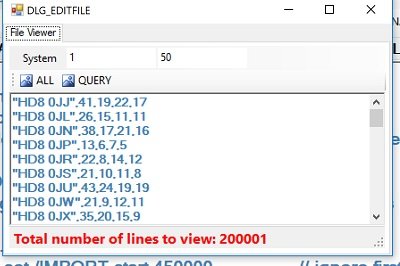
Like TAB.SHOW command, you can invoke File Viewer as pop-up screen via a KBL command:
File.Show which can be set to START, END for full file, or with specified numbers or parameterised numbers. Note, that without specified start and end limitations a full list of millions of rows could be available for display which may result in a slower response time.
Moving data from File staging area to MAIN working memory dataset
There are several means of populating MAIN, a key method is by moving between consecutive File rows and specifying what to do with the data. This is done via a LOOP with the implicit FILE parameter for the extent of rows. But first you must specify the structure of the receiving dataset in MAIN, i.e. the columns you need and the number of rows. Note, you can add rows incrementally within the loop (ADD /ROWS 1) if you prefer.
Delete /tab MAIN // Clear out MAIN and create a new table for file data. Here the cols correspond with Office of National Statistics data formats
ADD /COL c.1 Postcode
ADD /COL c.2 Total
ADD /COL c.3 Males
ADD /COL c.4 Females
ADD /COL c.5 Occupied_Households
ADD /ROWS 500000 // can add rows with a parameter if preferred, or incrementally later
// Now unpack the file rows into parameters using SPARSER (simple parser) commands
LOOP L1 FILE // loop to read a file row, unpick each file row
UTIL.SPARSER.NEW /PAR FILE_TEXTLINE // the text in the current file row
UTIL.SPARSER.DELIMITER , // Here comma is the delimiter (standard .csv)
UTIL.SPARSER.FIRST Postcode // first is Postcode
// We could add logic here to test the value and accept / reject a row for processing
UTIL.SPARSER.NEXT Total
UTIL.SPARSER.NEXT Males
UTIL.SPARSER.NEXT Females
UTIL.SPARSER.NEXT Occupied_Households
UTIL.SPARSER.RUN
TAB.GET /FROM_PARS [L1] // data in parameters is moved to matching col names in MAIN
LOOP END
// All done dataset is now in MAIN
The above script logic moves all data in the File staging area, row by row into MAIN. Note, as it is all under programmatic control, you can test for and handle changes in the data. Similarly, if say, in the above example, you wanted only for certain postcodes (e.g. for Postal Sector ˜HR"), you could test the value of the postcode parameter (where marked) and do a LOOP CONTINUE to reject unwanted postcodes. This would have taken a little longer to process but substantially reduced your PC's memory requirements. The data used to create this code example had 1.3M rows from the 2011 UK Census, HR post codes only numbered 6060 so this pre-processing in the File staging area, minimised the size of MAIN.
Exporting Data from the File Staging Area
As an alternative to pushing data into MAIN and subsequently processing it with conventional KBL, there is the option of working directly on the source data in the File transit area. For example, you could have reformatted individual rows (using the FILE_TEXTLINE line text parameter). Furthermore, you could divide up the VLD import file in blocks of say 200000 records and exported in chunks to using the File.Export commands:
FILE.SET /EXPORT CLEARLINES // Clear any previous export file definitions
FILE.SET /EXPORT WRITELINE "ref,name,address" // Create a bespoke line at start of export
FILE.SET /EXPORT WRITELINE "---,-------,----------- // And another
FILE.EXPORT ONS_SUBSET.xlsx START 200000 400000 // Export full START to END or part dataset
An excel file called ONS_SUBSET will be created for records from row 200000 to 300000 (nb well with in the size scope of Excel)