
User Interface: TAB.SHOW, MSG and STANDARD commands
TAB.SHOW
The current contents of the in-memory, working storage datasets. MAIN, STORE and user NAMED tables can be displayed at will either while at the end of a script run or during stepping through it using the MAIN, STORE or NAMED menu icons OR within a script using the TAB.SHOW command. For example, to display the contents of MAIN:
TAB.SHOW MAIN "This is the current content of MAIN"
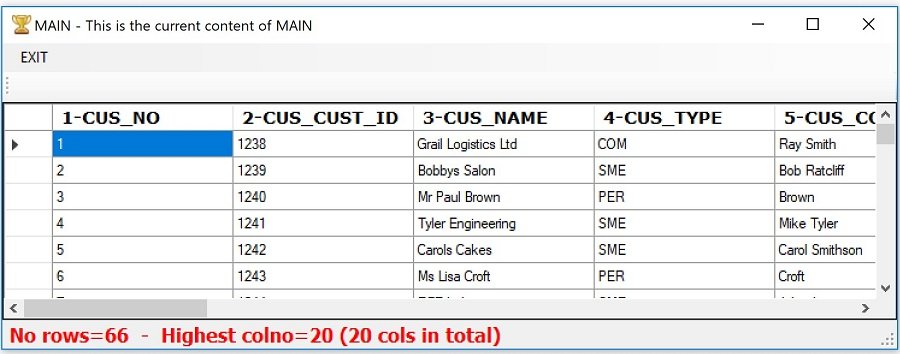
The same command structure can be used for STORE and NAMED user tables:
Tab.Show STORE "Copy of MAIN data"
TAB.Show POSTCODES "List of Postcodes"
Note that the TAB command-set prefix is used in front of SHOW because it is a non-unique command name, therefore TAB is needed to ensure that the correct version is invoked.
MSG (Message)
This command is the simplest means of communicating with the user. Use MSG to create brief message in a pop-up box. Processing halts until the message is dismissed by clicking the OK button
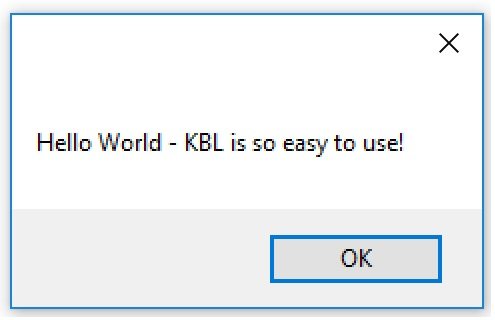
This was created with:
MSG "Hello World - KBL is so easy to use!"
But an important feature, that runs through most of the KBL commands is that you can substitute "literal" values for parameters. This enables you to genericise your scripts I.e. "parameterise" much of script where values are set with your logic / data, rather than hard-code them. So another example for MSG could be:
PAR Firstname = Harry // Your parameters could be set with logic/data rather than like this
PAR SecondName = Kiri
PAR FullName = "[FIRSTNAME] [SECONDNAME]"
PAR Age = 28
MSG "Firstname is [FIRSTNAME], Surname is [SECONDNAME], your fullname is [FULLNAME] and your age = [AGE]"
This would give the message:
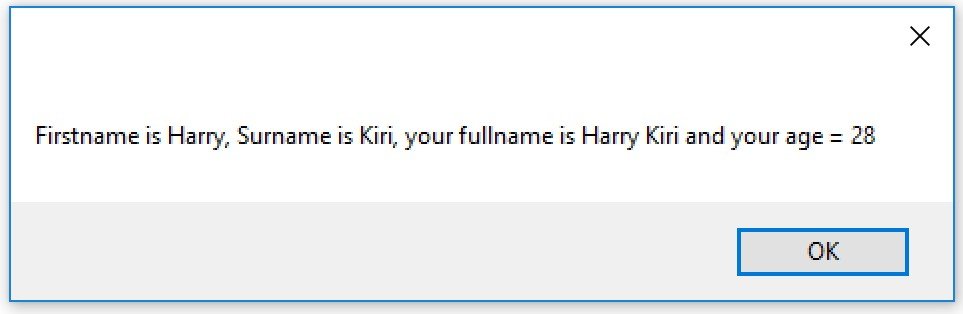
In this example, the text string was constructed from set text plus the placement of parameter values.
STANDARD.INPUT.YESNO
This Command is used to display a statement / question to which the script user can click on OK or Cancel.
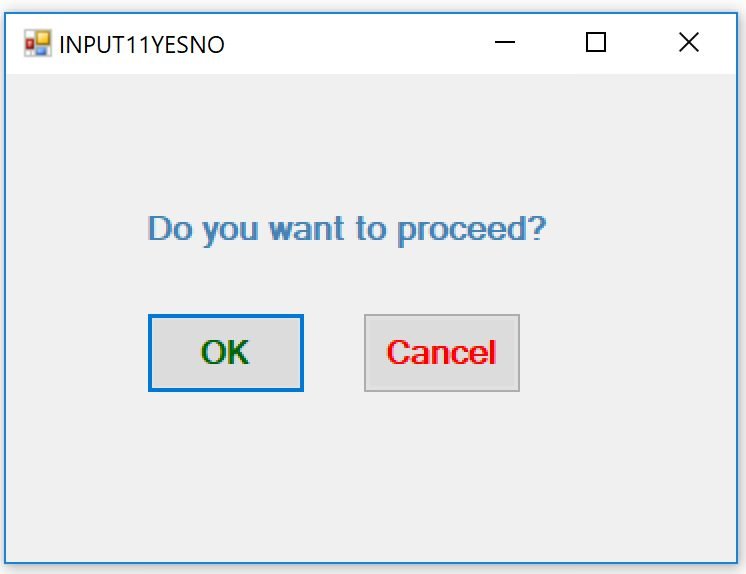
The example above is created by the following command:
Standard.Input.YESNO "Do you want to proceed?"
On clicking one of the buttons, the parameter INPUT_CLICKED is set to either OK or CANCEL. This can be tested to determine the next action to be taken.
STANDARD.INPUT.PAR
This command can be used for the script writer to ask for entry of a single parameter value:
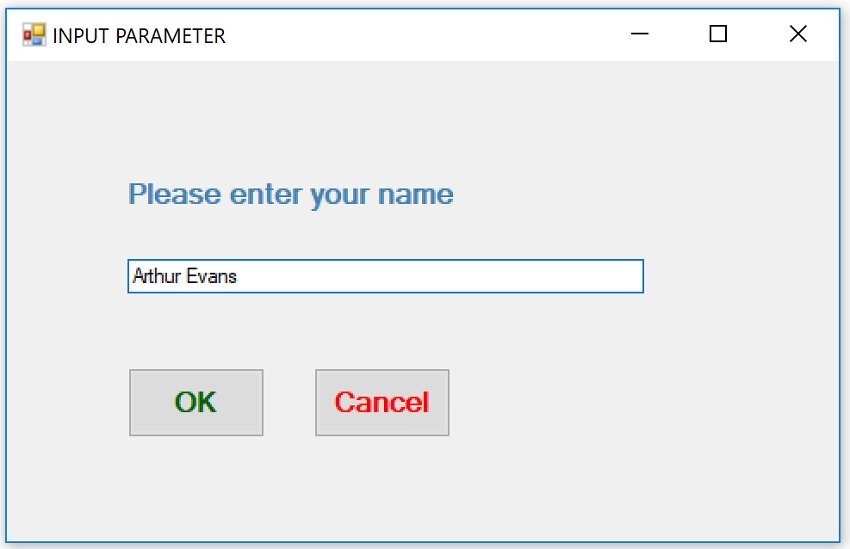
Standard.Input.Par CUST_NAME "Please enter your name?" 300
Where CUST_NAME is the name of the parameter to fill, followed by the form title (optional) and a text length (optional)
On clicking one of the buttons INPUT_CLICKED is set to OK or CANCEL.
It is permissible to input a null value (click OK without entering a value). To test for an empty value use something like the following:
IF IS "[CUST_NAME]0" = 0
GOTO ENTER-NAME
IF END
If the parameter CUST_NAME returned is empty, by concatenating a character(s), we can test for this character being on its own indicating that the parameter is empty.
STANDARD.INPUT.DATE
This command presents a date selection form for the user to pick a date with a heading of the writer's choice. For example, the following command:
Standard.Input.Date "What date would you like to book?"
Present the following form:
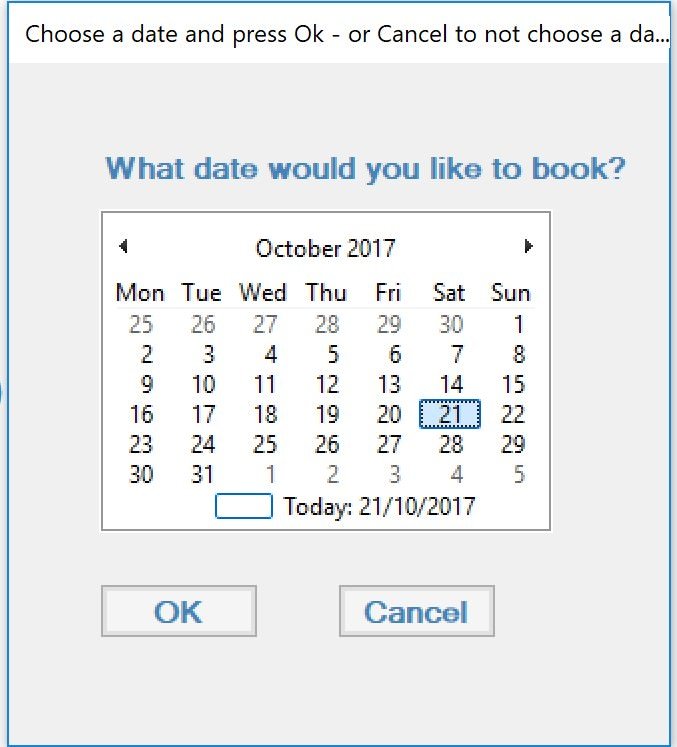
On clicking the OK button, a parameter called INPUT_DATE is populated with 21/10/2017.
Other User Interface commands
KBL Studio Plus has additional user interface commands
Â