
| The Export Command: Write out a data file from MAIN |
Introduction to the EXPORT Command
The EXPORT command writes out the contents of the MAIN table to a named file in a format prescribed by the user. In KSE. It mirrors the IMPORT command and currently there are three main file export format types:
EXPORT /XLSX – Write to an .xlsx Excel file to a named or default worksheet
EXPORT /KEG – Write to a text-based file in standard KEG format OR to a other ‘flat’ Text file formats (e.g. for .csv, .txt) or to one of your own design.
EXPORT /KBIN – Write to a Kegsoft compact binary file
The EXPORT command can be used with the FILE command set (used for Very Large Dataset processing). There is no physical limit to the size of export files created.
1. EXPORT /XLSX – Loading Spreadsheets into MAIN
Usually, spreadsheets have the column headings in the first row so the default way of writing to an xlsx file is:
Export /XLSX My_file Worksheet=Sheet1
If, exceptionally, the column header row was not needed, use the form:
Export /XLSX My_file Worksheet=Sheet1 Header=NONE
The file will be written to your default /Data KBL Studio directory. Note, that if the target file already exists, it will be overwritten. if the specified file is already open (say in Excel) an error would be reported and the KBL script would halt on the Export line.
The current EXPORT /XLSX command in KSE has only basic functionality and is not as sophisticated as the XLSX command set available in KSP (KBL Studio Plus) which is able to write selectively to a worksheet non-destructively without affecting other worksheets.
Define your column data types
Column data types will be preserved as defined in MAIN when exported to an XLSX file so if INTeger or REAL numbers are needed rather than TEXT (the default), ensure that the columns in MAIN are correctly defined before exporting (use the DEFINE command). Undefined, numeric data columns left as text type will be created as text fields in Excel and so may need to be converted be for use before any maths or statistic spreadsheet functions could be applied to the numeric columns.
Naming Worksheets
If the worksheet option is left unspecified, the EXPORT command will create a worksheet called Sheet1. If another name is required, it should be specified, E.g.
Export /XLSX CustomerList worksheet=SME_List
2.1 EXPORT /KEG – Kegosoft’s default data file format
The /KEG extension on the Export command will by default produce a text-based format file with KBL’s column definition headers at the start of the file. The file extension from /KEG is always .keg.data.txt Example: Use Export /KEG to write a file called Customer_list, the full file name will be called Customer_list.keg.data.txt
Example
Export /KEG CUSTOMER_list
This will export the KEG file using the data in MAIN, commencing with the header section with column definitions. Being a .txt file you can easily read the file with a text editor (e.g. Notepad). It will look something like this:
ADD /COL c.1 Customer_id INT
ADD /COL c.2 Order_value REAL
ADD /COL c.3 Customer_Name TEXT
ADD /COL c.4 Customer_type TEXT
ADD /COL c.5 Customer_email TEXT
ADD /COL c.6 Sequence INT
SEP ,
DATA
1241,684.67,Tyler Engineering,SME,admin@tylereng.co.uk,1
1242,683.92,Carols Cakes,SME,cakes@ccakes.co.uk,2
1253,530.68,Steve's Plugs,SME,steve@steveplugs.co.uk,3
1252,239.86,Richard Philby,PER,philby666@yahoo.co.uk,4
1258,234,Ageism Concern,CHA,enquiries@Ageist.org.uk,5
1251,233.4,Mrs Sara Smith,PER,ssmith2@mymail.com,6
1254,210.95,Mr John Enderby,PER,streak17@hotmail.co,7
1290,199.1,John Fitch,PER,JF101@gmail.com,8
1285,194.18,Mr Lucien Semon,PER,lsemon@frpneus.fr,9
Note that here, the field separators are commas (the SEP , line defines this) but could have been any other character.
This export format is ideal when working entirely within KBL applications as, when read using the IMPORT file, this file would be read into MAIN and the column types automatically defined as per the /KEG file headers definition.
Note that the column separator (known as a delimiter, here a comma) is the KBL system default and denoted with the ‘SEP ,’ instruction line. If for some reason, we wanted to use a different delimiter character (e.g. when commas are actually included in the data as valid characters), we can change the delimiter default by preceding the Export command with a SET command. E.g.
SET /EXPORT KEG DELIMITER |
Export /KEG CUSTOMER_list
2.2 EXPORT .csv and .txt files into MAIN
Commonly data provided to you, will be text based and often formatted with comma or other delimitere (e.g. csv files). To export csv-style text-based use the Export /KEG command without writing out the header definitions. Example, here we import the example KSE Customers file CCC_CUSTOMERS.xlsx file and export it as a text file:
Import /XLSX ccc_customers worksheet=FIRST
Export /KEG xx_customers hdrformat=line
Result in xx_customers.keg.data.txt – shown in notepad
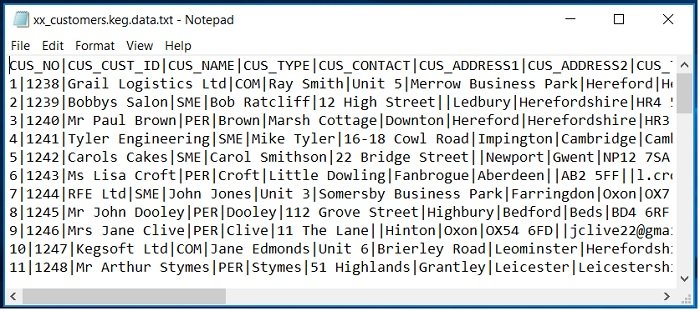
Note, here the delimiter is set as | (vertical concatenate key), which KBL uses as default as it is a better delimiter than a comma as it is often legitimately used in text strings – including addresses. However, to override the | default with comma separators, use the following SET construction:
Set /EXPORT KEG DELIMITER ,
Export /KEG xx_customers hdrformat=line
This time the exported file looks as follows:
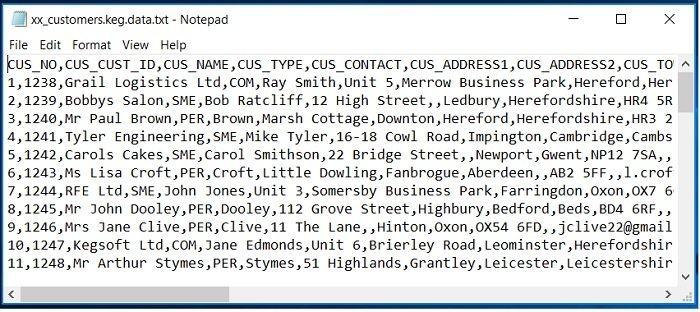
If no column header line was required use:
Export /KEG xx_customers hdrformat=NONE
2.3 Exporting More Exotic Text-based file formats
There is nothing to stop the user from constructing text-based export files in any format that is required – for example perhaps as dictated by a Third Party application input format. An ETL (Extract, Transform and Load) might be a case in point where Headers, footers, block markers and other format elements may be required, indeed blocks of records may have mixed record formats. For example, one technique is to create a single column in MAIN built up by concatenating other columns: E.g.
REM Reform Col 1 in MAIN for special format
Col c.1 = "RECTYPE01 " + c.2 + , + c.3 + , + c.10 + , + C.12
STORE // Move to STORE
DELETE /TAB MAIN // Clear out MAIN
CLONE C.1 STORE C.1 MA_SYSTEM_HEADER_01 TEXT
Export /KEG ETL_FORMAT1 hdrformat=line
The above KBL snippet reconstructs and replaces column 1 of MAIN by concatenating several columns with separators. The resulting modified MAIN is then moved to the STORE table, MAIN is cleared out and repopulated with just Col 1 from STORE. It is finally exported to ETL_FORMAT1.keg.data.txt with the format below:
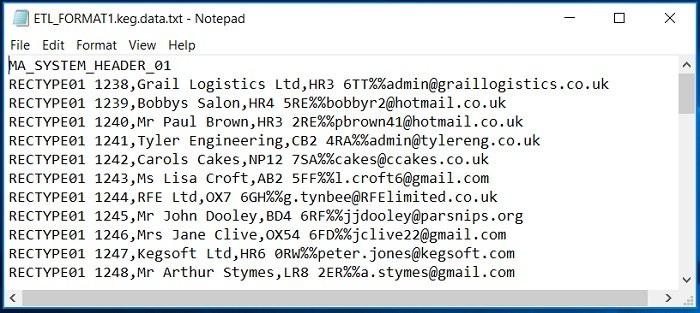
3. EXPORT - /KBIN (Kegsoft binary file)
A /KBIN file is another Kegsoft-specific data file type. The data are compacted and encrypted as a binary file, thus making them small and efficient to store, They can only be read by a KBL script. They are created in much the same way as /KEG files and have the column names and type definitions built into them. The naming convention for /KBIN files is filename.kbin.kegsoft. Example:
Export /KBIN Myfile // Write a Keg format-style file into MAIN except it’s a binary file
And to read a KBIN file in KBL is simply:
Import /KBIN Myfile // Reads a Keg binary format file – no options required.
Exporting Very Large Files
See the section on KBL and Big Data
Creating /KEG files & converting between /XLSX (spreadsheets) and /KEG format file
You can easily convert your spreadsheets to /KEG format files and vice versa using the IMPORT and EXPORT commands. For simplicity and convenience, unless you have specific need to use spreadsheets, we recommend working in /KEG format when writing KBL as it has the advantage of preserving the format types in the file definition and transparency – you can edit your data files in a text editor (e.g. Notepad), if it suits you.
Other Data Export Formats
There are of course other common file formats and types of data storage used in IT but these tend to be for databases more structured data exchanges. These are not part of the EXPORT command. The following format categories are either covered in KSP (KBL Studio Plus – for application building) or will be considered in a future phase.
- Writing to (and Reading from) Relational Database (KSP)
- Writing to (and reading from XML) – Future release